
How to Annotate a Website: Highlights, Sticky Notes & Organization
Annotating a website means adding your own layer on top of a page: highlights, sticky notes, drawings and comments that stay attached to the URL. Researchers use annotations to keep evidence on the page, students to mark what an exam will cover, designers and reviewers to give feedback exactly where it belongs. This guide shows what “good” annotation looks like in practice, and how to annotate any website in a way that survives reloads, restarts and redesigns.
What does it mean to annotate a website?
A web annotation is a note that references a specific place on a specific page. That is what separates annotation from bookmarking (which only remembers the page) and from note apps (which remember your words but lose the context). A good annotation system gives you three things:
- Precision — the note points to the exact sentence, not the whole site.
- Persistence — the note reappears every time you (or a teammate) opens the page.
- Context — you can see what the page looked like when you annotated it, even if it changes later.
How to annotate a website with Web Annotator
Web Annotator is a free Chrome and Edge extension that adds this layer to any page. Everything below takes place in your browser — no account, no upload, works offline.
Step 1: Install the extension
Add it from the Chrome Web Store or Edge Add-ons. Once installed, a small floating toolbar appears on pages you have annotated, showing how many notes exist on the current page.
Step 2: Highlight the sentence that matters
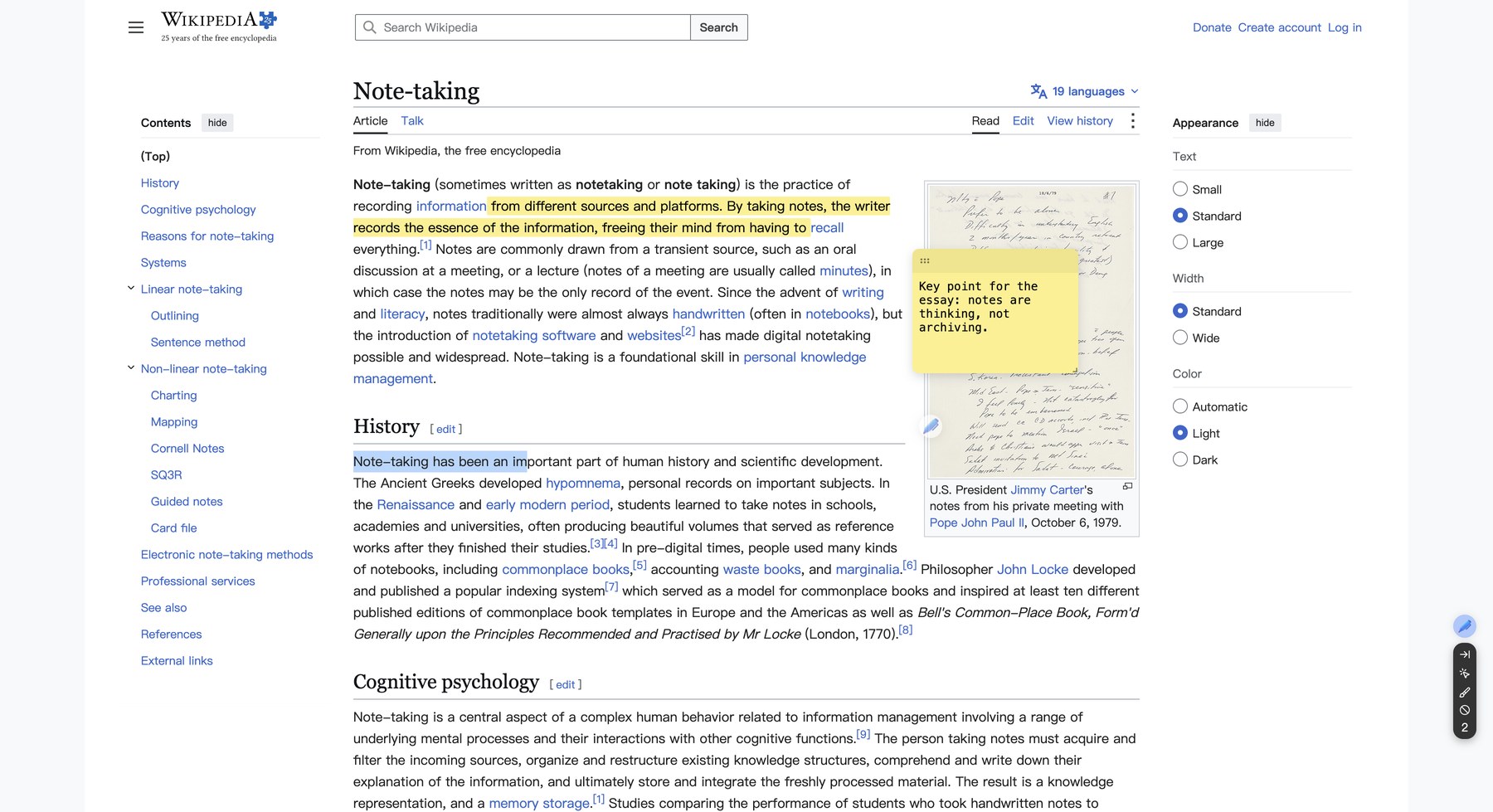
Select any text with your mouse and save the highlight (Alt + S by default, or from the right-click menu). The passage gets a colored mark and is stored together with the page URL and a snapshot.
Step 3: Add a sticky note for your own thoughts
Highlights capture what the author said; sticky notes capture what you think. Create one with Alt + A or from the side panel, drag it anywhere on the page, and type your comment — the note stays pinned to that page.
Step 4: Keep everything organized in the side panel
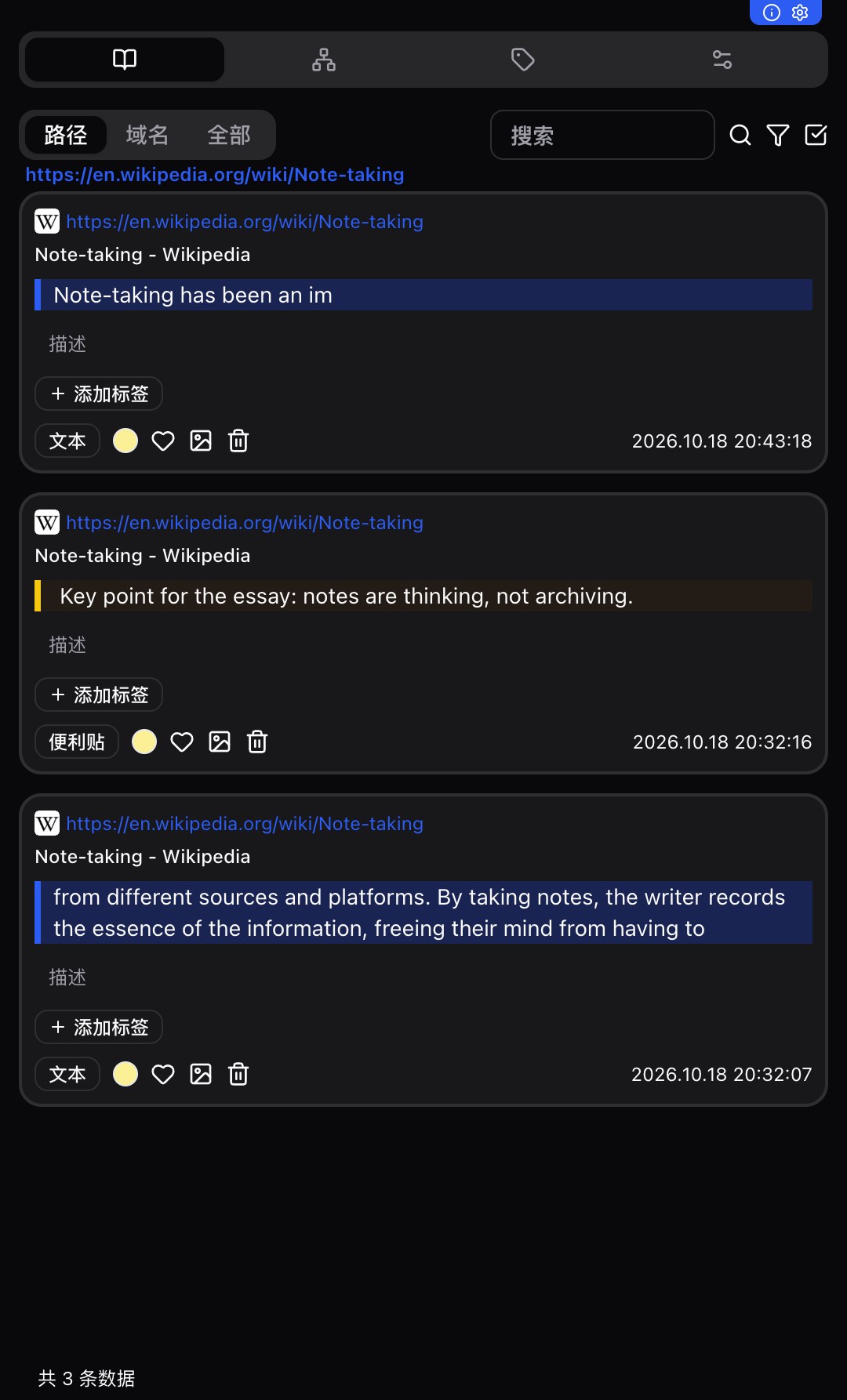
Open the side panel from the extension icon. Every highlight becomes a note card with the quoted text, the source URL, a timestamp, and a description field you can fill in with your own words. You can browse notes by path (this exact page), by domain (everything on this site), or view all notes across every website you have annotated.
Step 5: Export, back up, or sync
When you are ready to use your annotations somewhere else, export them with one click. WebDAV sync is available if you want the same notes on a second computer — or keep everything local and offline; both are first-class options, not afterthoughts.
Annotation workflows that actually help
- Literature research: highlight the claim, sticky-note your critique, tag both with the paper theme. When writing, filter by tag instead of re-reading twenty tabs.
- Exam prep: annotate the lecture slides page and the reading list; the side panel becomes a per-site index of everything your teacher emphasized.
- Website feedback: pin sticky notes directly onto the page (“this button is ambiguous”), then walk the client through the URL instead of writing a separate doc.
- Comparing sources: annotate two competing articles and pull both pages’ notes into one view to see where they agree.
FAQ
What is the easiest way to annotate a website?
Install a highlighter extension like Web Annotator (free for Chrome and Edge): select text to highlight it, press Alt+A for a sticky note, and everything is saved to the page automatically — no account needed.
Do website annotations survive page reloads?
Yes, with Web Annotator they do. Annotations are stored for each URL and restored automatically every time you open the page, even after restarting the browser.
Can I annotate a website without an account?
Yes. Web Annotator stores annotations locally in your browser with a privacy-first design. Export/import and optional WebDAV sync are available, but no sign-up is ever required.
Can I add notes and drawings to a web page, not just highlights?
Yes. Besides text highlights, Web Annotator supports sticky notes pinned anywhere on the page, page-level notes, and a draw mode for marking up the page with freehand strokes.
Is there a free alternative to paid annotation tools?
Web Annotator is free and covers the core workflow — highlighting, sticky notes, organization, snapshots, export and sync — which makes it a practical free alternative for research and study.
Annotate your first page today
Install Web Annotator, open any website, and leave your first note on the page. Annotations only create value when they exist — start with one highlight and one sticky note on whatever you are reading right now.